Comments
Comments help you leave feedback, ask questions, suggest changes, or brainstorm on a different topic without interrupting the flow of content in the Space.
Add a comment
To add a comment:
Click the Comments icon in the top-right corner to open comment mode.
Select one or more objects you want to comment on.
To pin a general comment directly on the canvas, skip selection.
Click the New thread icon at the bottom of the pane.
Type your comment.
You can also add emojis or images using the options below the text box.
Click Post to start a thread.
Reply to a comment
Click Reply under the comment.
Type your message, add emojis or images if needed. and click Reply again to post.
Edit a comment
Hover over the comment and click the More options icon.
Select Edit to modify the content.
Edit associated objects
Click Edit and look near your name for the object count (e.g., "1 object selected").
Click the Edit selection icon next to it.
Choose new objects or click anywhere on the canvas to update the association.
Click Post to save changes.
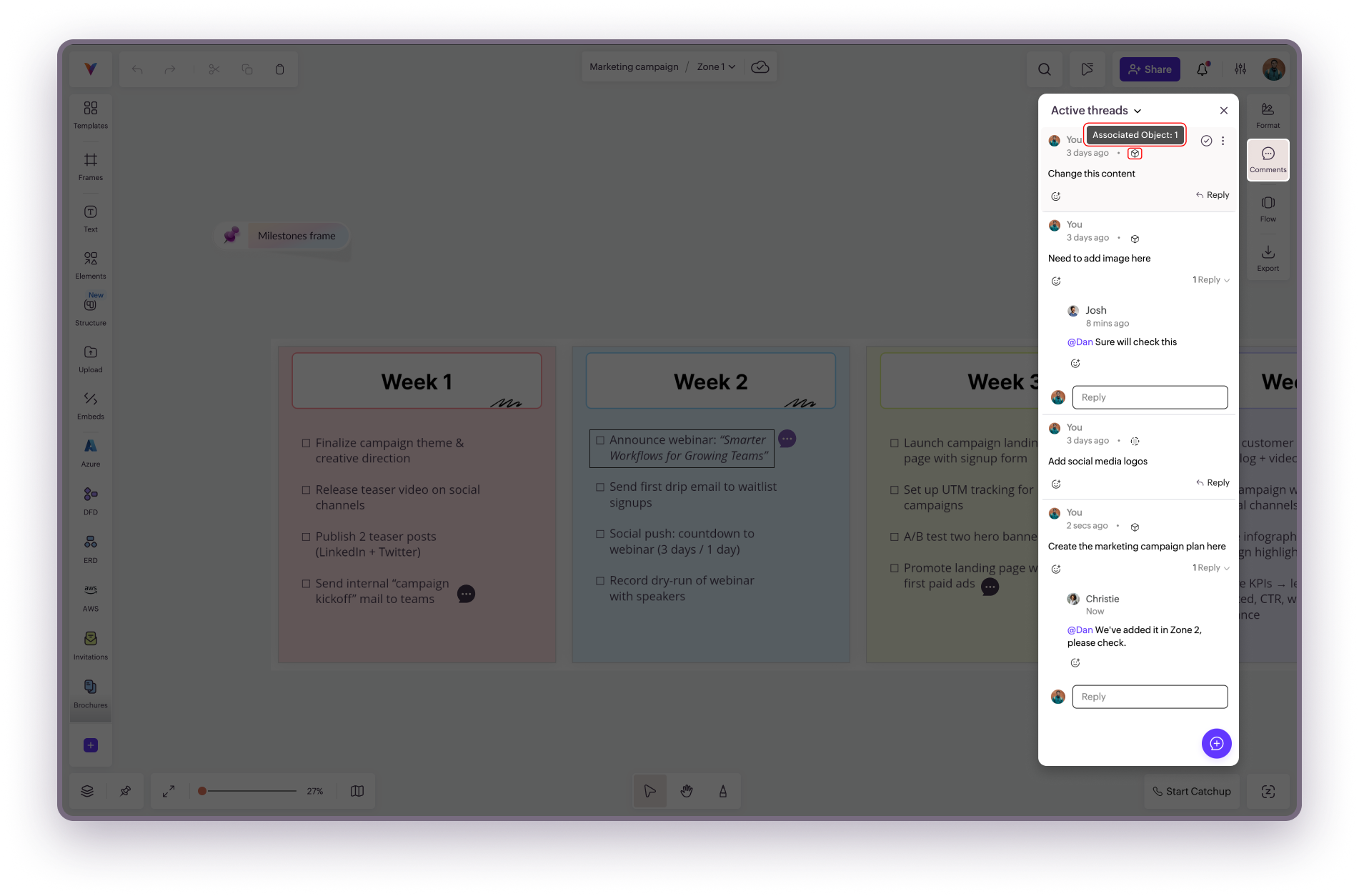
Click Edit and look near your name for the object count (e.g., "1 object selected").
Click the Edit selection icon next to it.
Choose new objects or click anywhere on the canvas to update the association.
Click Post to save changes.
Resolve or reopen a thread
To resolve: Hover over the comment and click the Resolve icon.
To reopen: Go to Resolved threads, find the comment, and click the icon again.

Delete a comment
Hover over the comment and click More options.
Select Delete to remove it.
Copy comment link
Click More options on any comment.
Select Copy comment link to get a direct link.
React to a comment
Click the Add Reactions icon below the comment.
Click an emoji to react.
Comment filters
Active threads (default): See all unresolved comment threads.
All threads: Includes both resolved and unresolved threads
Unread threads: Shows threads you haven’t opened yet.
Mentions: Filters threads where you’ve been tagged.
Resolved threads: Shows all threads that have been marked as resolved.