Files in Vani
Files in Vani’s Upload panel lets you bring all your important documents, presentations, spreadsheets, and diagrams directly into your Space. By keeping everything in one place, your entire team can work with the same resources without switching between multiple tools or losing track of versions.
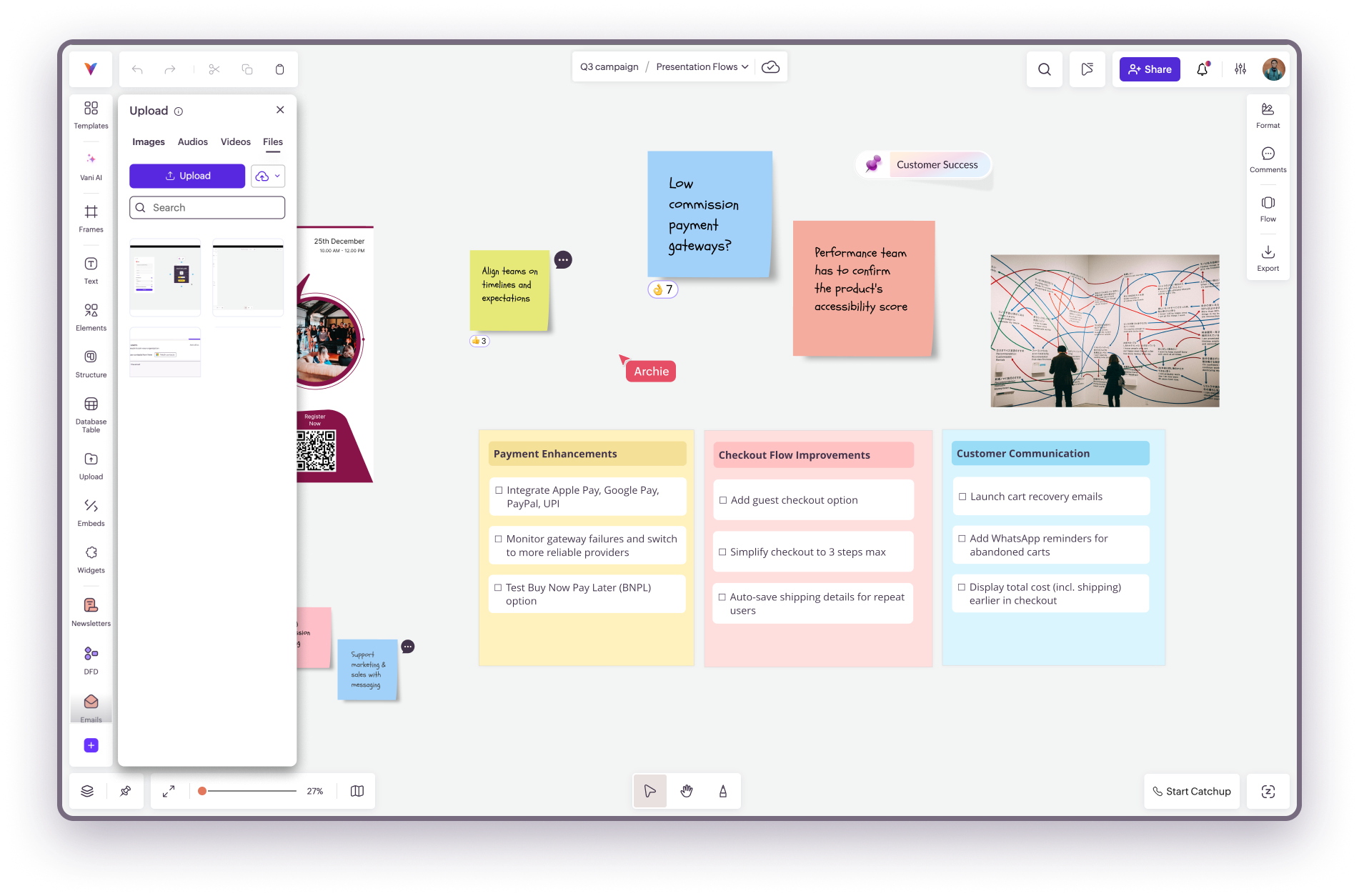
Upload options
When you open the Files tab under Upload, you’ll notice two simple ways to add files:
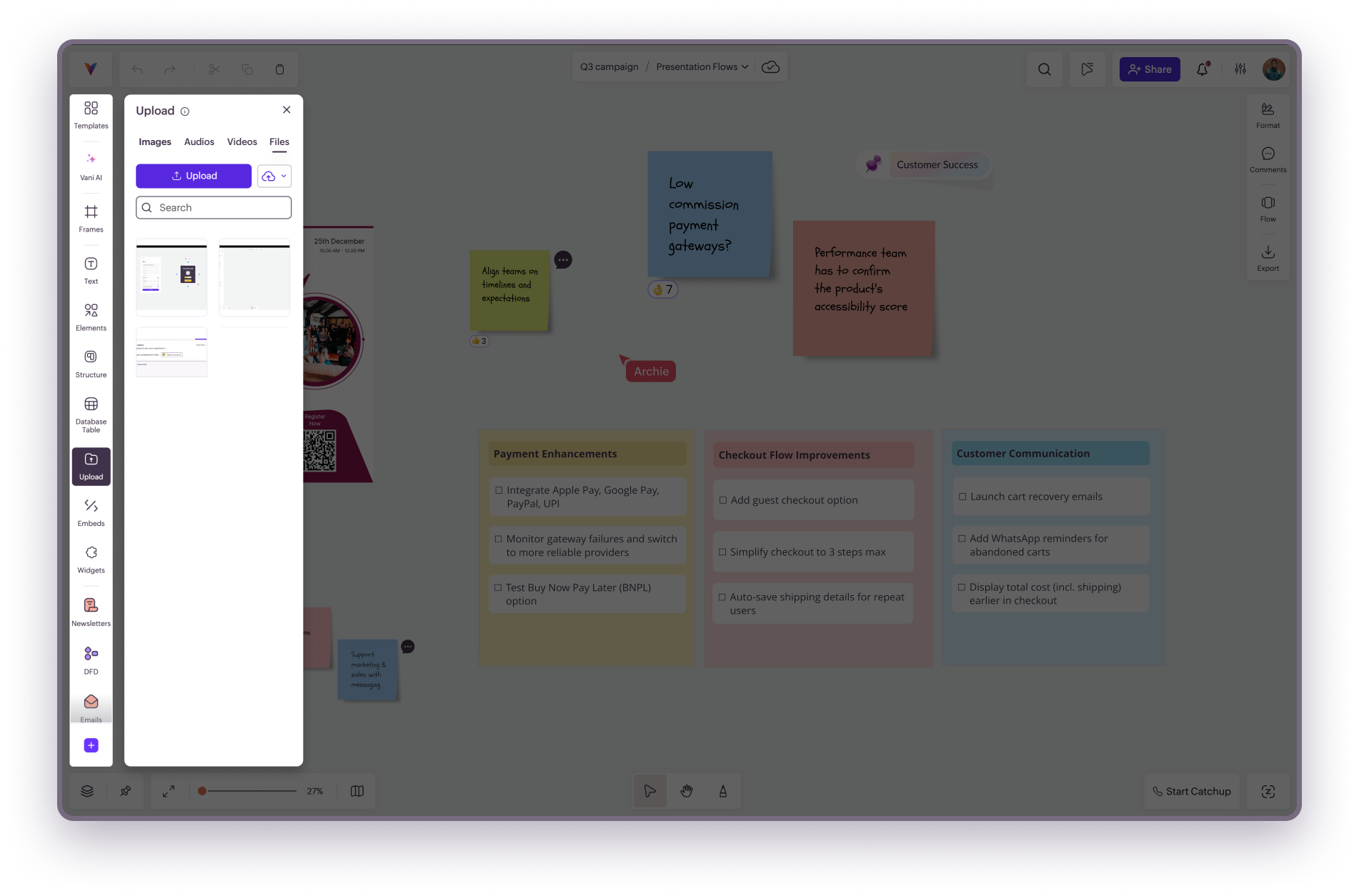
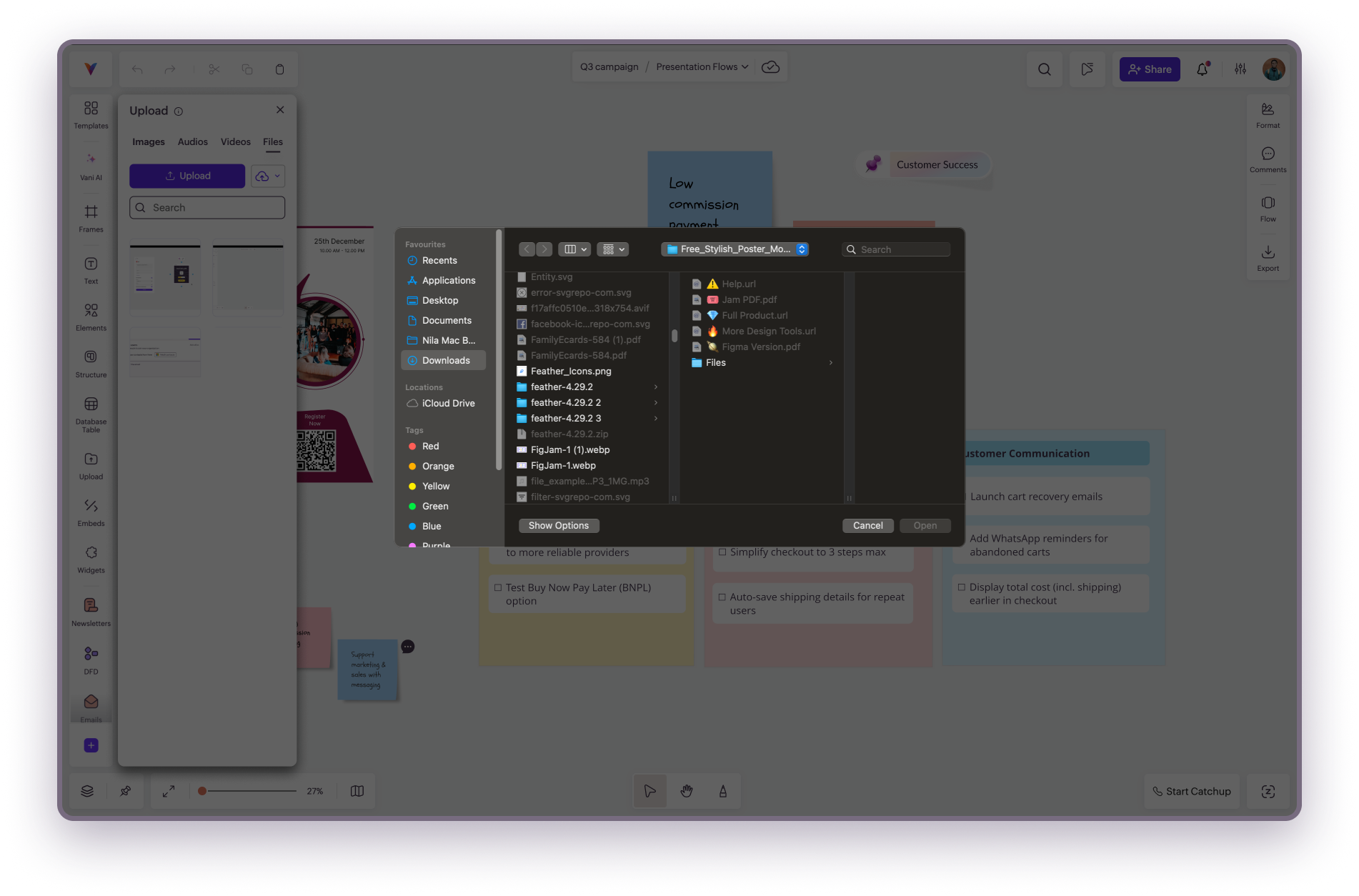
Upload from your computer
- Click the Upload button and select one or more files from your desktop or folders. The selected files will be uploaded instantly and will appear inside your Space, ready to use.
Import from cloud storage
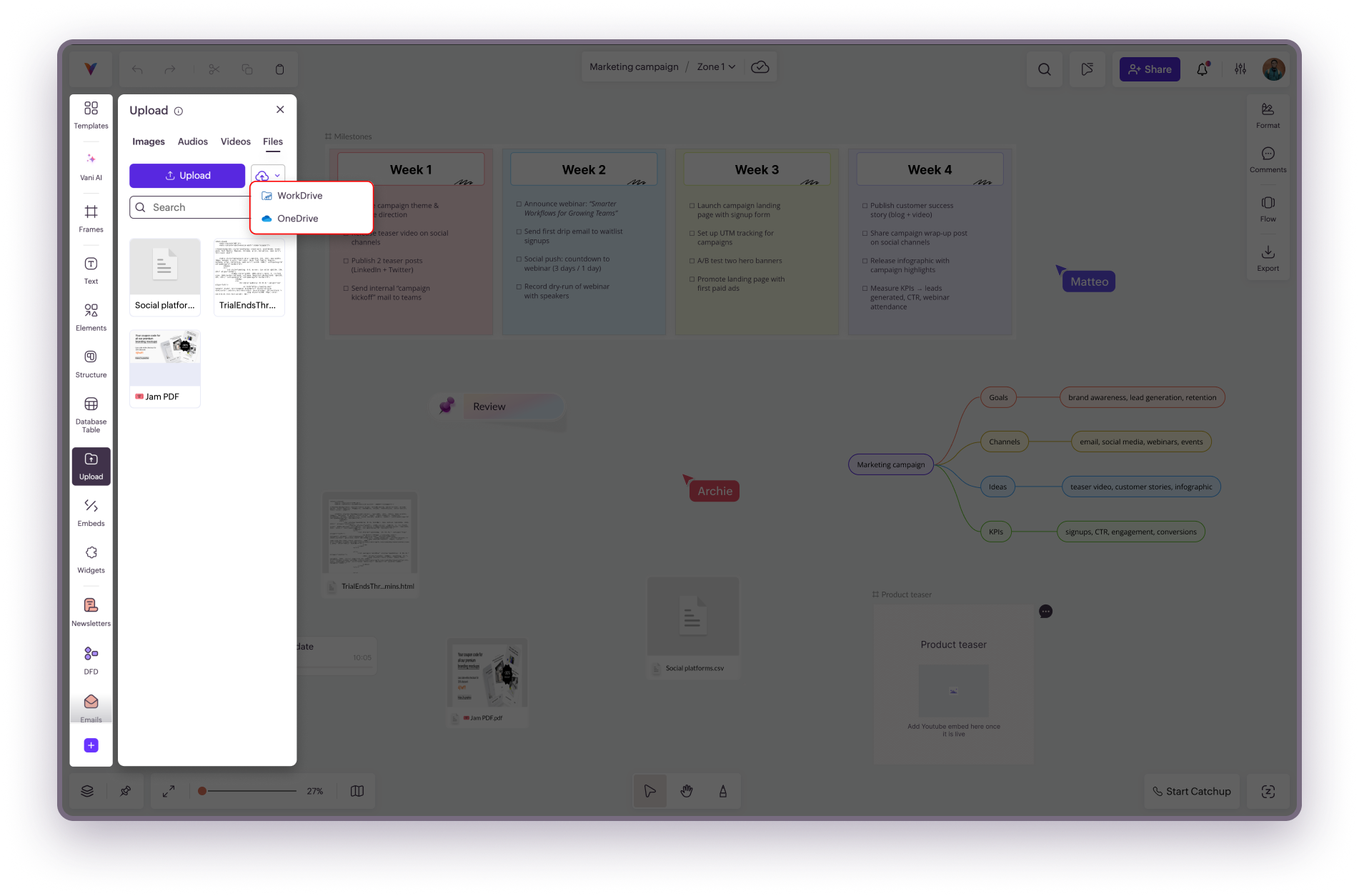
If your files are stored online, you can import them directly into Vani without downloading them first.
- Click the Cloud button and choose between Zoho WorkDrive or OneDrive. After signing in (if prompted), select the files you want to bring in.
- The chosen files will appear in your Space and will be available to all members for collaboration.
Supported File Types
Vani supports a wide range of file formats so you can centralize all kinds of project content in one place:
- Presentations: .ppt, .pptx, .pps, .ppsx, .odp, .sxi, .key
- Documents and text: .doc, .docx, .docm, .dot, .dotm, .dotx, .odt, .rtf, .txt, .pdf, .adoc
- Spreadsheets: .xls, .xlsx, .xlsm, .tsv, .csv, .ods, .sxc, .numbers
- Diagrams: .drawio_xml, .vsdx
- Web and code files: .html, .css, .js, .java, .json, .py, .xml, .sql, .swift, .cpp, .go, .ts, .rb, .php, .cs, .c, .scala, .vb, .sh, .bash, .pl, .lua, .dart, .rs, .yaml, .yml, .md, .log, .ini, .conf, .erl, .hs, .ml, .hx, .groovy, .vim, .xhtml, .xsl, .st, .f95, .scm, .clj, .cr, .bf, .pali, .ds, .mk, .atom, .coffee, .tex, .properties, .htm, .perl, .golo
Notes
- You can upload multiple files at the same time.
- All uploaded files stay within the Space and are accessible to every member who has access.
- Upload time may vary depending on your internet speed and the size of the files.
Where to go next