Creating or joining a team
In Vani, you can work in teams to collaborate with others.
Depending on your plan, a team can either exist as a standalone setup or as part of an organization.
- In the Team plan, a team is your main setup
- In the Business plan, multiple teams can exist within an organization
Creating a team
During signup
When you sign up for Vani, you can create your first team as part of the onboarding process.
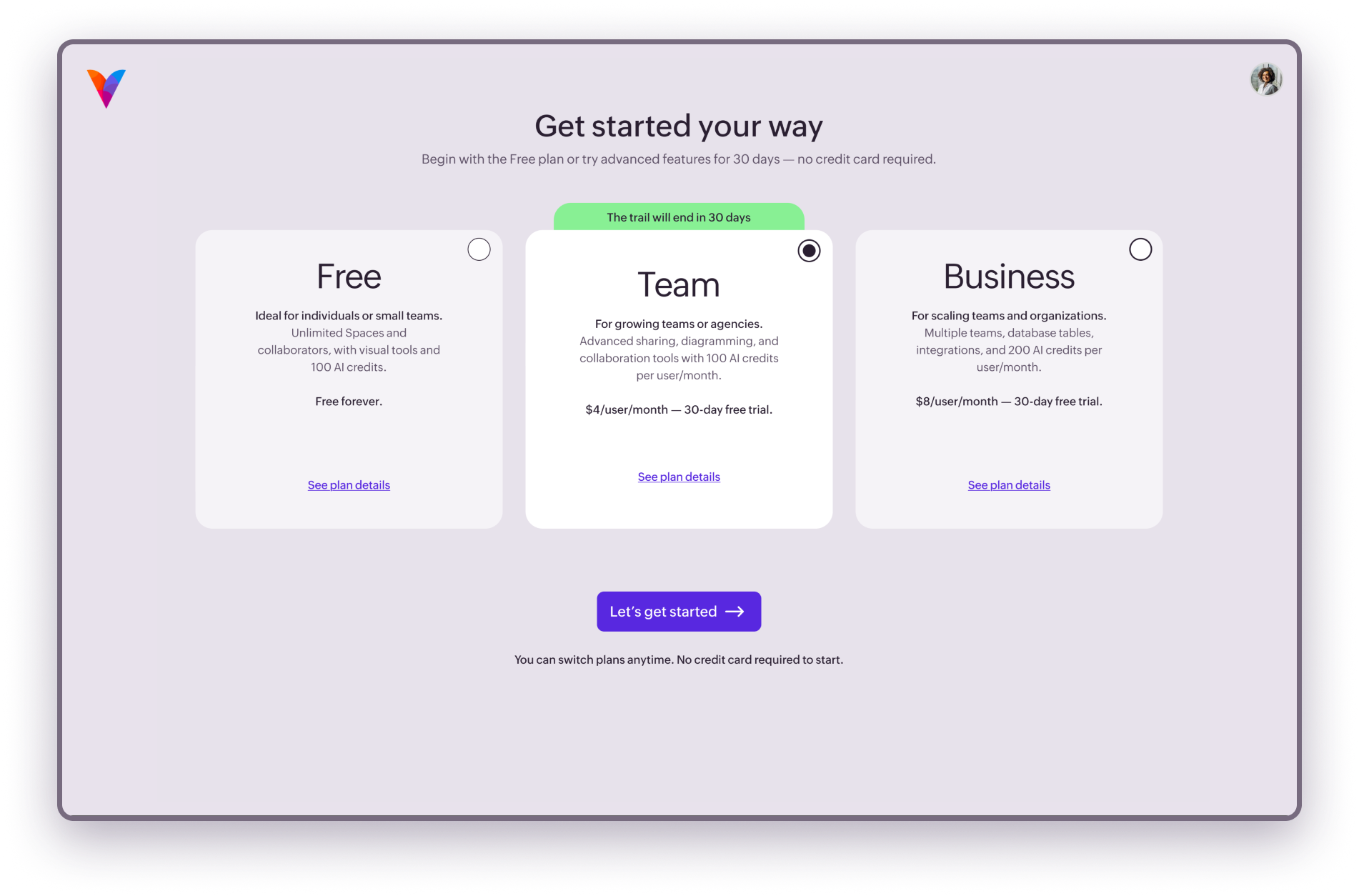
In the Team plan:
- Enter your team name.
- Complete the setup.
In the Business plan:
- Enter your organization name.
- Enter your first team name.
- Complete the setup.
This creates your initial team.
Creating a new team in the Team plan (after signup)
If you are already using Vani (for example, you have joined other teams but have not yet created your own), you can create a new team from the listing page.
- Click the team dropdown in the left panel.
- Click Create your team.
- Enter the team name.
- Click Create team.
Creating a team inside an organization (Business plan)
If you are part of an organization, you can create teams within it based on your role. Only organization admins can create teams.
You can create a team in two ways:
From the listing page
- Click the team dropdown in the left panel.
- Select Create your team.
From Org settings
- Go to Settings.
- Open Org settings.
- Click Teams.
- Click Create team.
- Enter the team name.
- Click Create team.
Joining a team
Joining a team using an invite
You can join a team using an invite link shared by a teammate.
- Click the invite link.
- Sign in to your Vani account (if required).
You will be added to the team.
Joining an existing team during signup
If you’ve been invited to a team, the invites page will appear during signup. Choose the team you want to be a part of and click Accept to join the team
Joining a team later (Team plan)
You can manage your team invites anytime from the listing page.
- Open the dropdown near your team name in the top-left
- Accept or Decline the pending invitations.
Joining a team inside an organization (Business plan)
If you are part of an organization:
- Organization admins can join any team directly
- Organization members can request to join a team (based on organization policy)
To join or request access:
- Go to Settings.
- Open Org settings.
- Click Teams.
- Find the team and click Join team or Request to join.
Switching between teams
You can always join or switch between teams from the team dropdown in the listing page.
- Click the team dropdown.
- Select the team you want to switch to.